
The folks at Marakana did a great job hosting the recent Flash Android event, as well as recording and publishing the talk. As a fellow user group leader, I can appreciate the hard work that went into preparing the video, including some fine editing and splicing by Max Walker (the presentation was not as flawless as he made it look!)
You can view the talk on the Marakana website, or here as an embedded video:
http://www.youtube.com/watch?v=1N4kS7hetkk
All the slides for the talk can be found on SlideShare: http://www.slideshare.net/steveonjava/beginning-android-flash-development
Flash Capability Reporter
Also, as promised I am going to start posting different samples from the book. The first of these is the Flash Capability Reporter. It is a simple application that displays your device characteristics in a scrolling text field. Figure 1 shows a screenshot of the Capability Reporter in action.

Figure 1. Flash Capability Reporter running on the desktop
Flash Mobile Setup
If you want to publish to an Android device you will also need to have a current Android SDK installed. You can download this from the Google Android site:
Installing the AIR for Android Plug-in
Out of the box Flash CS5 doesn't include support for AIR for Android, so if you plan on using any mobile specific APIs you should install the AIR for Android plugin. The AIR for Android Flash plug-in sits on top of Flash Professional CS5 and is available as a free beta:
http://labs.adobe.com/technologies/flashpro_extensionforair/
The filename for the extension should be similar to the following:
AirforAndroid_FlashCS5.zxp
Simply double clicking on it should automatically launch the Adobe Extension Manager and install AIR for Android as shown in Figure 2. You can also open the Adobe Extension Manager manually and add in the extension by clicking on the Install button.
Note for Windows Users: If you are running Windows Vista or Windows 7 you will need to run the Adobe Extension Manager as Administrator. To do this find Adobe Extension Manager CS5 under Windows Start Menu -> All Programs -> Adobe XXX CS5, right-click on it, and choose Run as Administrator.
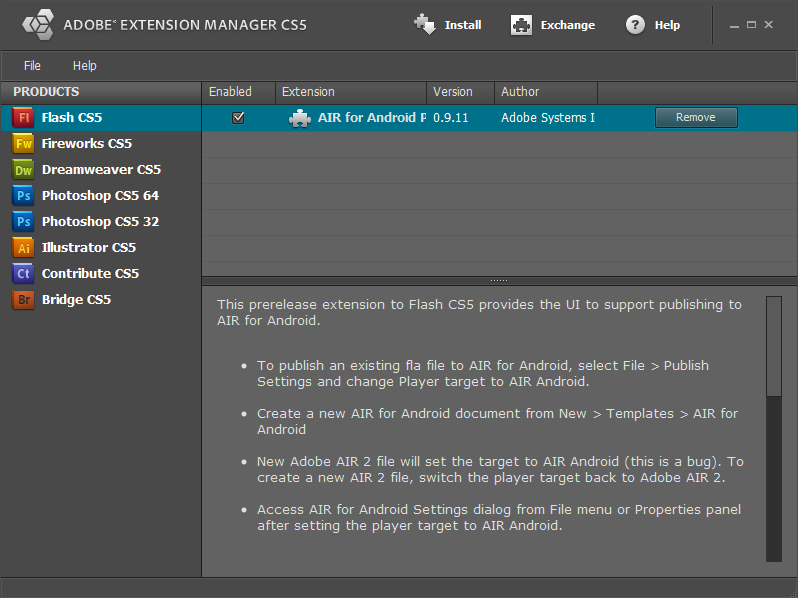
Figure 2. Adobe Extension Manager plug-in installation
Once the AIR for Android plug-in is installed you will see some additional options in Flash CS5. This includes a new player type of AIR Android an AIR Android settings dialog, and a new AIR for Android template. To convert existing projects you can go into the project properties and change the player type to AIR Android.
Creating a New Android Project
To create a new AIR for Android project, open the new project dialog from File -> New... and click the Templates tab. Here you can select an AIR for Android project and choose your device template as shown in Figure 3.

Figure 3. Flash CS5 new template dialog
** **This will create a new project with the canvas perfectly sized for a mobile project in portrait mode and allow you to test your application in Flash Professional or the AIR Debug Launcher.
Writing the Flash Capability Reporter
The Flash Capability Reporter is a simple application with a scrolling list that enumerates all the capabilities of the emulator or device you are running on.
For the Actionscript code we will use static constants from the Capabilities and Multitouch classes. Most of these return true or false, but some will return string or integer values. By using the string concatenation operator we can easily format them for display as shown in Listing 1.
Listing 1. Flash capability checking code
import flash.system.Capabilities;
import flash.ui.Multitouch;

capabilityScroller.capabilities.text =
  "AV Hardware Disable: " + Capabilities.avHardwareDisable + "\n" +
  "Has Accessibility: " + Capabilities.hasAccessibility + "\n" +
  "Has Audio: " + Capabilities.hasAudio + "\n" +
  "Has Audio Encoder: " + Capabilities.hasAudioEncoder + "\n" +
  "Has Embedded Video: " + Capabilities.hasEmbeddedVideo + "\n" +
  "Has MP3: " + Capabilities.hasMP3 + "\n" +
  "Has Printing: " + Capabilities.hasPrinting + "\n" +
  "Has Screen Broadcast: " + Capabilities.hasScreenBroadcast + "\n" +
  "Has Screen Playback: " + Capabilities.hasScreenPlayback + "\n" +
  "Has Streaming Audio: " + Capabilities.hasStreamingAudio + "\n" +
  "Has Video Encoder: " + Capabilities.hasVideoEncoder + "\n" +
  "Is Debugger: " + Capabilities.isDebugger +  "\n" +
  "Language: " + Capabilities.language + "\n" +
  "Local File Read Disable: " + Capabilities.localFileReadDisable + "\n" +
  "Manufacturer: " + Capabilities.manufacturer + "\n" +
  "OS: " + Capabilities.os + "\n" +
  "Pixel Aspect Ratio: " + Capabilities.pixelAspectRatio + "\n" +
  "Player Type: " + Capabilities.playerType + "\n" +
  "Screen Color: " + Capabilities.screenColor + "\n" +
  "Screen DPI: " + Capabilities.screenDPI + "\n" +
  "Screen Resolution: " + Capabilities.screenResolutionX + "x" +
                          Capabilities.screenResolutionY + "\n" +
  "Touch Screen Type: " + Capabilities.touchscreenType + "\n" +
  "Version: " + Capabilities.version + "\n" +
  "Supports Gesture Events: " + Multitouch.supportsGestureEvents + "\n" +
  "Supports Touch Events: " + Multitouch.supportsTouchEvents + "\n" +
  "Input Mode: " + Multitouch.inputMode + "\n" +
  "Max Touch Points: " + Multitouch.maxTouchPoints + "\n" +
  "Supported Gestures: " + Multitouch.supportedGestures;
The "\n" character at the end of each line adds line breaks for readability. The resultant string is then assigned to the Flash text field with id capabilities defined in the capabilityScroller movie. The use of an embedded movie in Flash cleans up the main timeline by hiding the scrolling animation of the text.
While this would have been functionally complete, we added some extra graphic niceties to the completed sample, including the following:
- A Text Clip Mask - A gradient Rectangle is used as a mask for the text to provide both clipping at the top and bottom of the scroll region as well as a subtle blue gradient in the center of the screen. Because Flash layer masks do not work with Dynamic Text, a little bit of Actionscript glue code was added to do a runtime mask:
- color.mask = capabilityScroller;
- Blinking Lights - A simple animation was created on the left side by using the Flash Deco Tool with a Grid Fill using a Brick Pattern. Two different colors were chosen with the Random order option checked to create the visual appearance of blinking lights over a three frame animation.
- Android Logo and Text - No Android application is complete without a little bit of eye candy. With the full color, high resolution display available on Android you can do a lot with the graphics look of your application. In this case vector graphics were chosen for smooth scaling to any size device.
You can download the completed example by clicking on the following link:
Flash Capability Reporter
To run the example, go to Control -> Test Movie in Flash Professional. This will run the application within the Flash runtime as shown previously. Alternatively you can publish it to a device, such as a Motorola Droid or Nexus One, and inspect the properties on your phone. Figure 4 shows the Capability Reporter running on a Google Nexus One.
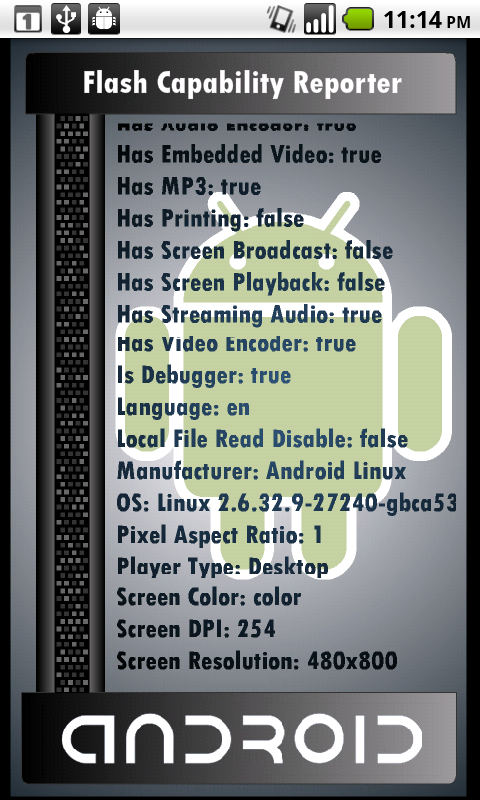
Figure 4. Flash Capability Reporter on the Nexus One
You can make use of this sample during your own development to compare device features across desktop and mobile. Feel free to add to the list of capabilities and experiment with running on different devices.